
Thumb Inventory: a one-handed stock counting app
Thumb Inventory is the open-source example app that ships with android_scaffold. It is a small stock counter for a fridge, pantry and freezer, written in Kotlin with Jetpack Compose, and designed so that day-to-day counting needs one thumb and no typing.
Key takeaways
- 26 Kotlin files in six packages, built and launched with one command:
python3 android_scaffold.py src --watch. - Tap to add, swipe left to use one, double-tap to flag, long-press for a bottom sheet. Every change vibrates and offers Undo.
- Each change is saved on the phone immediately, so the app works offline and survives interruptions.
- Inventories move as plain CSV through the share menu, "Open with…", the file picker or straight to another phone over local Wi-Fi.
What the inventory app does
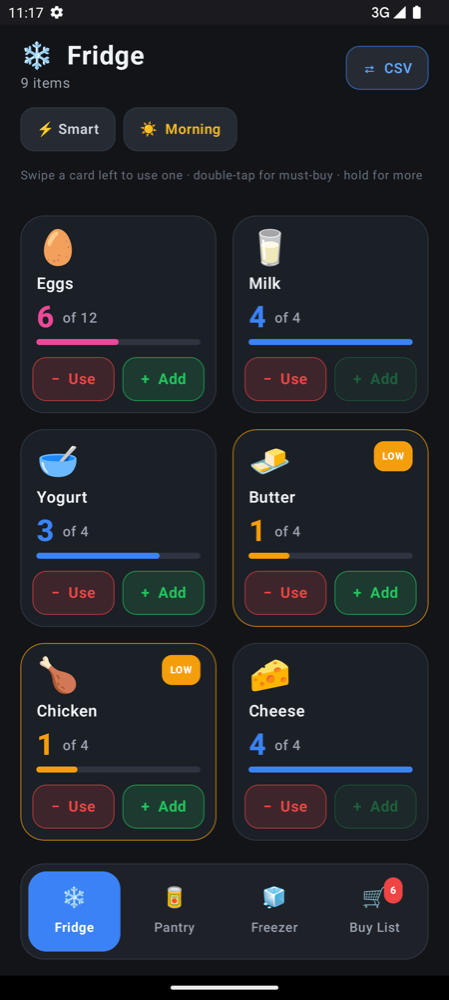
Most stock counting happens standing in front of a shelf with something else in your other hand. Thumb Inventory is built for exactly that moment. Items are shown as large tiles in a two-column grid, grouped into zones: Fridge, Pantry, Freezer and a Buy List that collects everything running low or marked as must-buy.
Each tile shows the item, a big quantity readout such as "2 of 4", a coloured fill bar and a stock badge. An item counts as low once it falls to a quarter of its maximum, and low or flagged items appear on the Buy List automatically, with a badge on the Buy List tab showing how many need restocking.
Run the example with live reload
From the repository root, with the Android SDK installed and an emulator or phone available (see Install):
python3 android_scaffold.py src --watchandroid_scaffold scans src/, generates the Gradle project in android_build/, registers MainActivity as the launcher, builds the APK, boots an emulator if nothing is connected, and opens the app. Watch mode then rebuilds, reinstalls and relaunches the app every time you save a .kt file. Live reload with --watch explains the loop in detail.
To build an APK you can send to someone instead:
python3 android_scaffold.py src --name "Thumb Inventory" --build-apkThe APK is copied to apk/, ready to share and sideload.
Project layout: 26 files, six packages
There are no Gradle files, manifest or resources in src/. Only Kotlin. android_scaffold places each file according to its package line and writes everything else (see How it works).
| Package | Files | What lives there |
|---|---|---|
thumbinventory | 1 | MainActivity: sets up the Compose UI and receives CSV shared from other apps or opened from a file manager. |
model | 3 | The InventoryItem data class, zones and stock levels; pure functions for changes such as addOne(), useOne(), refill(); and ordering for the Smart and Lock sort modes. |
data | 5 | Saving to the device (InventoryStore), CSV reading and writing, merging two inventories, opening shared documents and the starter items. |
sync | 1 | OfflinePeerSync: sends a CSV from one phone to another on the same Wi-Fi network or hotspot. |
ui | 15 | Composables for the header, grid, tiles, zone switcher, notice bar, bottom sheets and the state controller. |
ui.theme | 1 | Colours, shapes, spacing and type in one place. |
The model layer has no Android imports, which keeps the rules (what "low stock" means, how a merge works) easy to read and change on their own.
Touch first: one thumb, no keyboard
Every common action is a gesture on the tile itself, so you never have to aim for a small button. This is the touch targets and gestures guide applied to a real screen:
| Gesture on a tile | Action |
|---|---|
| Tap | Add one (on the Buy List, tap restocks the item to full) |
| Swipe left | Use one |
| Double-tap | Mark or unmark as must-buy |
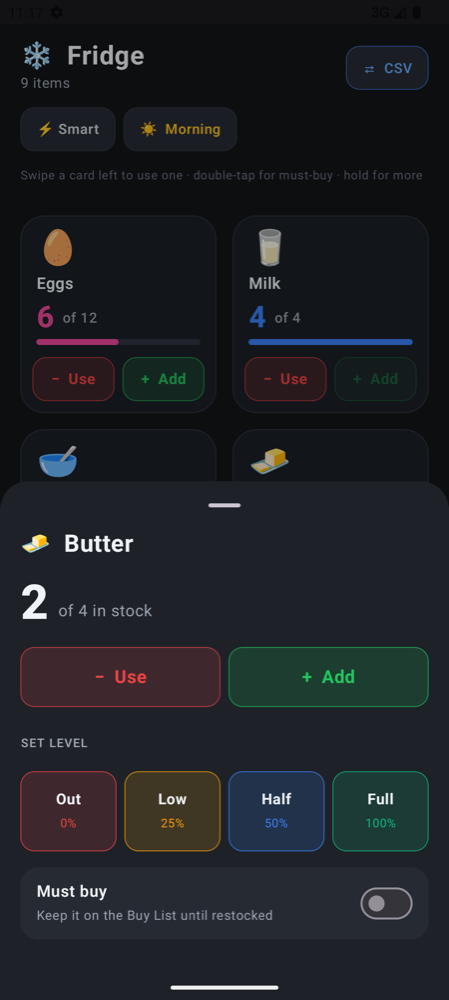
| Long-press | Open a bottom sheet with Out / Low / Half / Full buttons and a stepper |
The tile gestures are a single detectTapGestures call in ui/InventoryTile.kt:
detectTapGestures(
    onTap = { if (isShopMode) actions.refill(item) else actions.add(item) },
    onDoubleTap = { actions.toggleCritical(item) },
    onLongPress = { actions.openDetails(item) }
)
The swipe uses detectHorizontalDragGestures and fires "use one" once per gesture after a short drag, so a long swipe never removes two. Swiping sideways on the zone bar at the bottom moves to the next or previous zone.
Layout built around the thumb zone
The screen is ordered from top to bottom as header, item grid, notice bar, zone switcher. The things you touch most, the tiles and the zone tabs, sit in the lower and middle part of the screen where a thumb reaches comfortably while holding the phone in one hand. The header holds things you change rarely: the sort mode (Smart or Lock) and the share menu. Read The thumb zone for the reasoning.
The Smart sort puts items that match the time of day first (morning items from 5 am until 2 pm, evening items the rest of the day) and then the items you use most, so the tile you want is usually already near your thumb. Lock keeps a fixed order for people who count by position.
Haptics and undo instead of confirmations
Every change goes through one function that vibrates and records the change:
fun applyChange(changedItem: InventoryItem, message: String) {
    haptics.performHapticFeedback(HapticFeedbackType.LongPress)
    controller.update(changedItem, message)
}
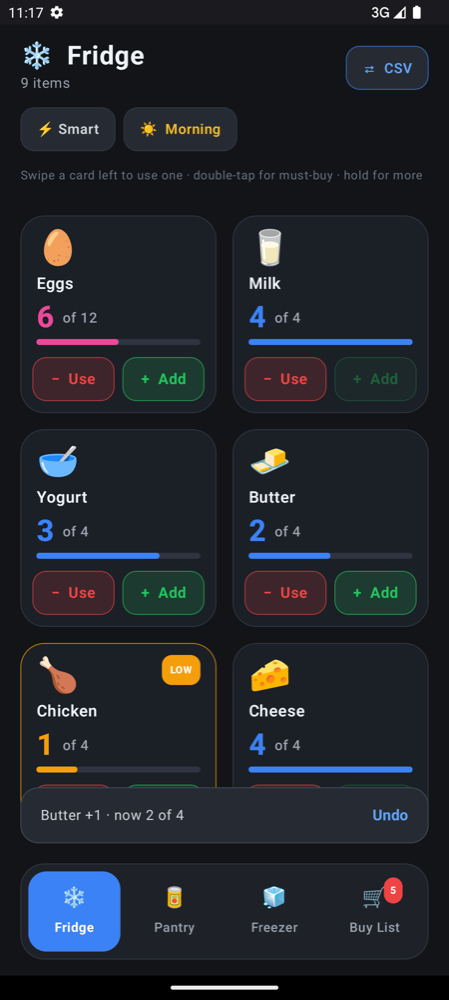
The controller keeps a snapshot of the list before each change and shows a notice like "Milk −1 · now 2 of 4" for two seconds with an Undo button. You feel the change without looking, you can see what happened if you glance, and a mistake costs one tap. More on this pattern in Haptics and feedback.
Saved instantly, works offline
InventoryController.persist() writes the whole list to SharedPreferences as JSON on every change, before the notice is shown. There is no Save button, no account and no network call, so the app behaves the same in a basement storeroom, in a cold room or in airplane mode, and nothing is lost if a phone call interrupts you mid-count. If stored data cannot be read, the app falls back to its starter items rather than crashing. See Offline-first field apps and Designing for interruptions.
Sharing and phone-to-phone sync without a backend
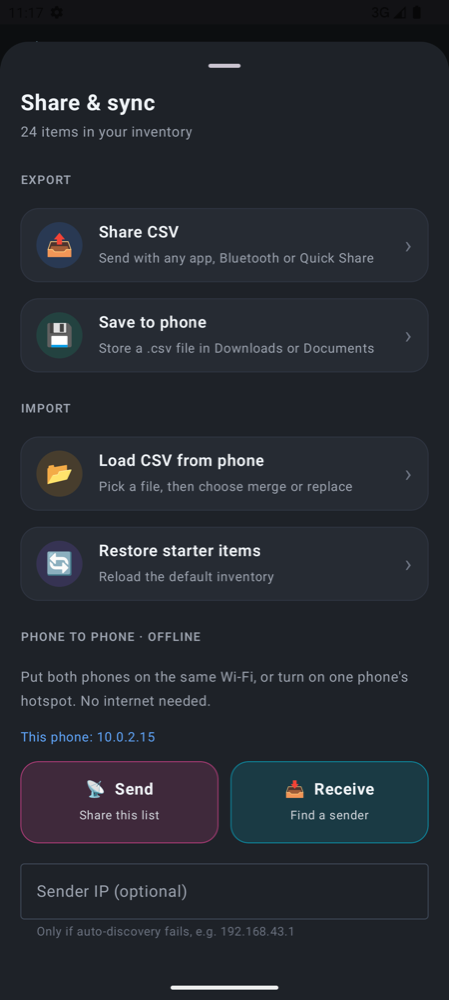
The Share & sync sheet offers four ways to move an inventory, all using plain CSV with the header id,name,symbol,zone,category,qty,maxQty,timeAffinity,isCritical,usageFrequency:
- Share CSV builds an
Intent.ACTION_SENDwith typetext/csvand opens the system chooser: WhatsApp, email, Bluetooth, Quick Share or anything else installed. - Save to phone uses
ActivityResultContracts.CreateDocument("text/csv")so the user picks Downloads, Documents or a connected cloud folder. - Load CSV from phone uses
OpenDocument. The app also receives CSV through "Share to" and "Open with", because the generated manifest registersSENDandVIEWintent filters for text and CSV. - Send / Receive transfers between two phones on the same Wi-Fi or hotspot. The sender listens on TCP port 48921 and broadcasts a UDP beacon; the receiver finds the beacon and downloads the CSV. If discovery is blocked, the receiver can type the sender's IP address.
When a CSV arrives, a sheet asks whether to club it with the current list (matching items by name add their quantities together) or replace the list. The details are in Sharing without a backend.
Exercises: change something and watch it reload
With --watch running, try these. Each one is a small edit in a single file, and the app relaunches on the emulator a few seconds after you save.
- Change the low-stock threshold. In
model/InventoryItem.kt, setLOW_STOCK_RATIOto0.5f. More items move to the Buy List. - Make the notice stay longer. In
ui/ActionNoticeBar.kt, raiseNOTICE_VISIBLE_MILLISto4_000Land see how it changes the feel of undo. - Try a three-column grid. Set
GRID_COLUMNSinui/InventoryGrid.ktto3. Notice how much harder the tiles become to hit with a thumb, then put it back. - Add a zone. Add an entry such as
GARAGE("Garage", "🧰")to theZoneenum. The zone switcher picks it up automatically. - Break the build on purpose. Delete a closing brace and save. The compile error prints in the terminal, watching continues, and the app recovers when you fix it.
Frequently asked questions
Is Thumb Inventory free to use and modify?
Yes. Thumb Inventory and android_scaffold are free software under the GNU General Public License, version 2 or later. You can use the app, change it and share your changes under the same licence.
Does the inventory app need an internet connection or an account?
No. Everything is stored on the phone and saved after every change. Sharing uses the apps already on the phone, and phone-to-phone sync works over a local Wi-Fi network or hotspot without internet access.
Can I open the exported CSV in Excel or Google Sheets?
Yes. Exports are plain comma-separated values with a header row, so they open in any spreadsheet. You can edit the file there and load it back into the app with Load CSV, then choose to merge or replace.
Can I use this example as a starting point for my own Android app?
Yes. Copy the src/ folder, rename the package in each file, change the model to your own data and run android_scaffold on it. The app ideas page lists apps with a similar shape.