
Haptic feedback on Android: confirm actions without looking
On a phone used in the field, the user's eyes belong on the shelf, the meter or the road, not on the screen. Good feedback lets them feel and glance rather than read: a short vibration says "done", a brief notice says what changed, and Undo fixes the rare mistake.
Key takeaways
- Every action needs feedback within about a tenth of a second, or people tap again.
- Use haptic feedback to confirm actions the user performs without watching the screen.
- Keep vibrations short, crisp and consistent. One pattern per meaning.
- Pair haptics with a visible change and a short notice with Undo.
- Never rely on vibration alone: some devices have weak motors and some users turn haptics off.
Why feedback matters more on a phone
On a desktop, the cursor and a big screen make it obvious whether a click worked. On a phone, the finger covers the button it pressed, the screen is small, and the user is often looking somewhere else. Without feedback, people are left guessing whether the tap registered, and the usual response to uncertainty is to tap again, which doubles the action.
Feedback has three jobs on a small screen:
- Acknowledge the touch instantly, so the user knows the app heard them.
- Confirm the outcome, so they know what changed.
- Offer a way back, so a mistake costs one tap instead of a frustrated search.
Eyes-free interaction with haptics
A vibration is the one signal that reaches the user whether they are looking at the screen or not, in a noisy warehouse where a sound would be lost, and in a quiet meeting where a sound would be rude. That makes haptic feedback the natural confirmation for repetitive, eyes-free tasks:
- counting items on a shelf while looking at the shelf,
- ticking off a checklist while walking a site,
- scanning or logging something while holding it in the other hand.
After a few dozen actions, users stop looking at the screen to check each one. They feel the tick and move on. That is the moment the app gets out of the way.
Try your core task with your eyes closed. If you cannot tell whether each action worked, your feedback is too visual.
Choosing the right kind of vibration
Android offers predefined haptic effects tuned for each device's motor. Use them instead of raw vibration durations: they feel crisp on good hardware and degrade gracefully on cheap phones. Keep a small, consistent vocabulary.
| Meaning | Feel | Example |
|---|---|---|
| Something changed | One short, firm tick | Count went up or down, item checked |
| Light selection | A very light tick | Moving through a picker, switching tabs |
| Entering a new mode | A slightly longer press | Long-press opened a menu or selection mode |
| Something went wrong | A distinct, double buzz | Count cannot go below zero, save failed |
Avoid long or repeated buzzing. A vibration that lasts longer than the action feels like an alarm, drains battery, and trains people to switch haptics off entirely.
Adding haptic feedback in Jetpack Compose
In Compose, get the current HapticFeedback from LocalHapticFeedback and call performHapticFeedback when an action succeeds. HapticFeedbackType.LongPress and TextHandleMove work on every Compose version; recent Compose releases add more specific types such as Confirm, Reject and SegmentTick.
@Composable
fun CountButton(label: String, onCount: () -> Unit) {
    val haptics = LocalHapticFeedback.current
    Button(
        onClick = {
            onCount()
            haptics.performHapticFeedback(HapticFeedbackType.LongPress)
        },
        modifier = Modifier.heightIn(min = 64.dp)
    ) {
        Text(label, fontSize = 20.sp)
    }
}
System haptics respect the user's settings: if they have turned touch feedback off, these calls do nothing, which is exactly what you want. Do not work around that setting with the raw vibrator service.
The Thumb Inventory example wraps every stock change in one helper that performs a haptic tick and then updates the count, so every action feels the same and no code path forgets the feedback.
Visual feedback that reads at a glance
Haptics say "something happened". The screen should say "what happened" in a form that is readable in a glance from arm's length:
Do
- Change the thing itself: the number updates large and bold, the card colour changes.
- Use a pressed state on every button so the touch is visible under the finger's edge.
- Animate briefly (100–300ms) to draw the eye to what changed.
Avoid
- Toasts or dialogs as the only sign an action worked.
- Long, decorative animations that block the next tap.
- Colour as the only signal; pair it with text or an icon.
For tips on making those numbers and labels legible outdoors and at large font sizes, see readable text and contrast.
Short notices with Undo
A short notice at the bottom of the screen, a snackbar, closes the loop: it names the change in plain words and offers Undo. It appears in the thumb zone, does not block the screen, and disappears by itself.
val snackbarHostState = remember { SnackbarHostState() }
val scope = rememberCoroutineScope()

fun announce(message: String, undo: () -> Unit) {
    scope.launch {
        snackbarHostState.currentSnackbarData?.dismiss()
        val result = snackbarHostState.showSnackbar(message, actionLabel = "Undo")
        if (result == SnackbarResult.ActionPerformed) undo()
    }
}
Dismiss the previous notice before showing a new one. When someone taps quickly ten times, they want to see the latest state, not a queue of ten messages playing out over the next minute.
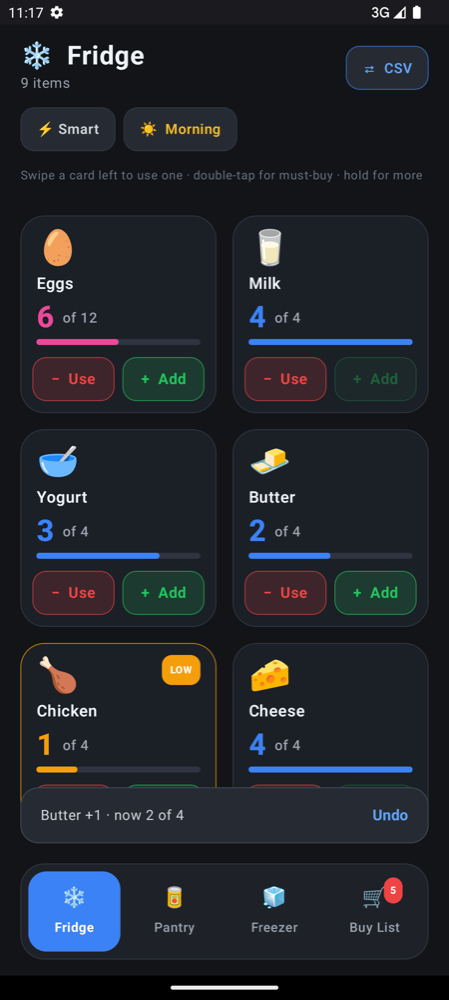
Write notices as outcomes, not as system messages: "Milk −1 · now 3" is more useful than "Item updated successfully".
Feedback that works for everyone
Not everyone feels, sees or hears feedback the same way. Layer the signals so that losing one still leaves the others:
- Haptic tick for people looking away.
- A visible change for people with haptics off or a weak vibration motor.
- Text in the notice so TalkBack announces it; snackbars are announced automatically.
- For custom status text, mark it with
Modifier.semantics { liveRegion = LiveRegionMode.Polite }so screen readers read updates.
Combined with the gesture guidance in touch targets and gestures, this gives an interaction loop that is fast, forgiving and usable without looking. You can try it on your own phone in a few minutes with the quick start.
Frequently asked questions
How do I add haptic feedback in Jetpack Compose?
Read LocalHapticFeedback.current inside your composable and call performHapticFeedback with a HapticFeedbackType, such as LongPress, when the action succeeds. It uses the device's tuned haptic effect and respects the user's touch feedback setting.
When should an app vibrate?
Vibrate to confirm deliberate actions the user may not be watching, such as counting, checking off or entering a new mode. Keep it short and consistent, and avoid vibrating for passive events or long animations.
Is a snackbar with Undo better than a confirmation dialog?
For most actions, yes. Applying the change immediately and offering Undo keeps repetitive tasks fast, while a confirmation dialog interrupts every action to guard against the rare mistake.
Should feedback rely on vibration alone?
No. Some phones have weak vibration motors and some users turn touch feedback off, so always pair haptics with a visible change and a short text notice that screen readers can announce.